
Create your account
One e-mail, one password. No Discord login, no phone number.
- Create your account in under a minute
- Your account is the key to every product you buy
- You can change the password any time in Account

Access
Buy an access period, install the Olymp launcher and play. Everything below is the whole process, start to finish, with no hidden steps.
How it works
This is the entire path from a new account to a running product. Each step is handled by our own servers and the launcher; nothing depends on third parties.
One e-mail, one password. No Discord login, no phone number.
24 hours, 7 days, 30 days or lifetime. Pay in crypto on our own payment server.
One portable Olymp.exe. No installer, no Start menu entry, nothing to uninstall.
The launcher opens your browser to sign in, binds itself to this machine and starts the product.
Stuck somewhere?
Send the launcher log (Account → Devices) and tell us which step failed. Most issues are SmartScreen, an old download or a second PC still authorized.
Install guide
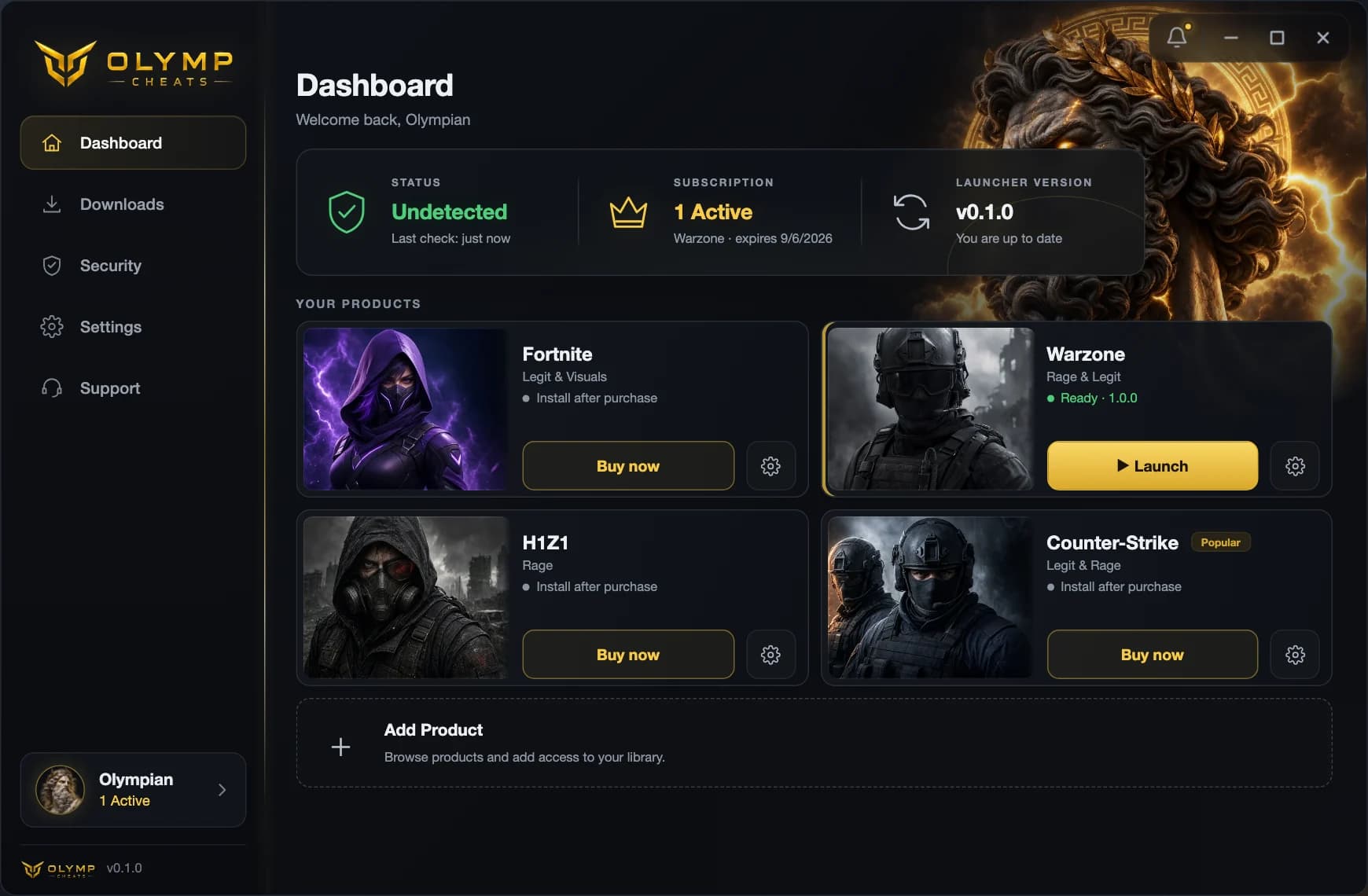
Read once, done in five minutes. The launcher is a single portable file; products are streamed into it for the duration of a session.
Windows 10 or 11 (64-bit), an internet connection while you play, and the account you used to buy access. No other software is required.
Open Account → Downloads while signed in. The current Olymp.exe is listed there together with its version and checksum. Save it anywhere you like: Desktop, Downloads, a USB stick.
Double-click Olymp.exe. There is nothing to install and no administrator prompt. Windows may show a SmartScreen notice for a new publisher; choose “More info → Run anyway”. The launcher keeps its data in your user profile, not next to the file.
Click Sign in: your browser opens, you confirm on olympcheats.com, and the launcher picks the session up on its own. Nothing is typed into the launcher itself. If the window does not open at all, the PC is missing Microsoft WebView2; the launcher shows a notice and opens the download page.
On first sign-in the launcher registers this computer as your device. Your account works on one authorized device at a time; you can move to another PC after a 12-hour cooldown from the Account page.
Pick the product in the dashboard and press Launch. The launcher fetches the latest signed build, unpacks it only for the duration of the session, and removes it when you stop.
The product keeps a short lease that the launcher renews in the background. If your connection drops for longer than a few minutes, the product stops on its own and resumes once you are back online.
Access expires at the exact time shown in Account. Buy a new period at any time; the launcher picks it up on the next sign-in. Done with it? Delete Olymp.exe, that is the whole uninstall.